Step by step guideFrom install to insert,
From install to insert,
in two minutes.
Follow along with real screenshots. No setup, no accounts, no learning curve.
1
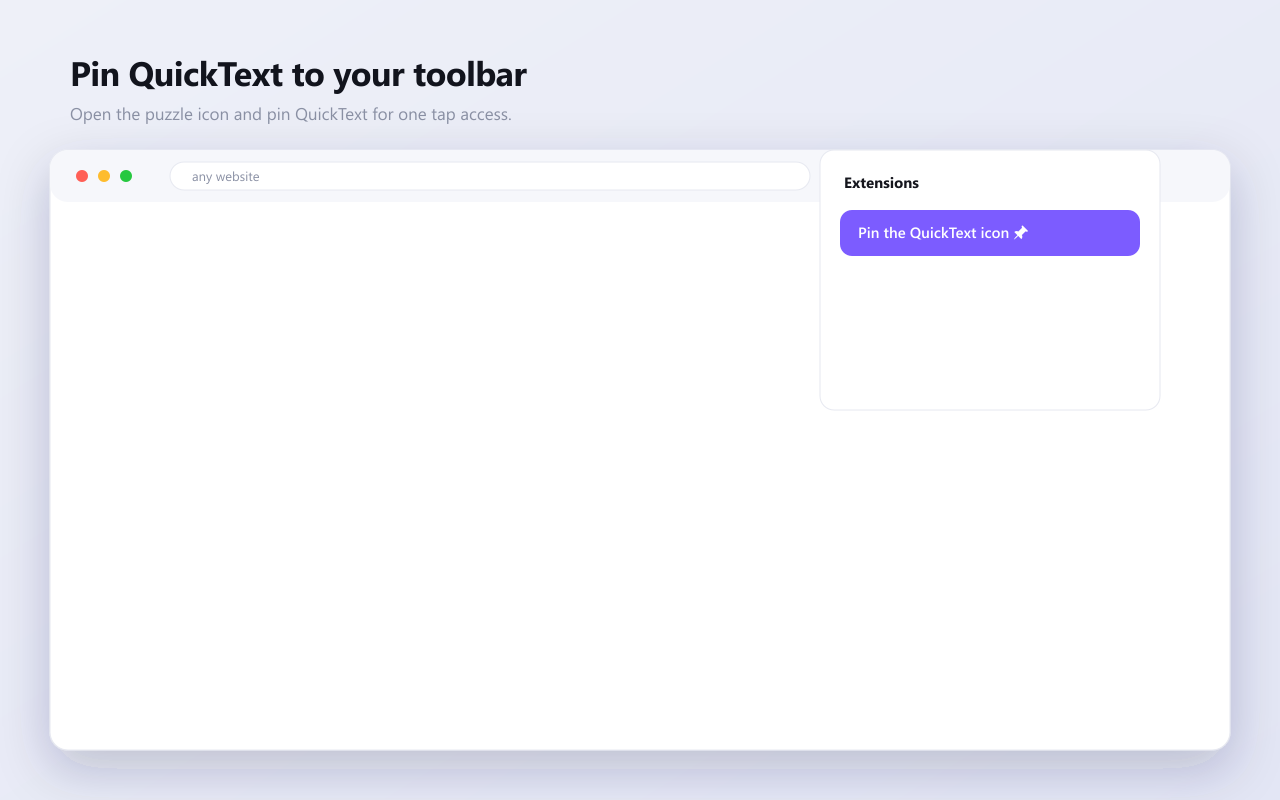
Install and pin QuickText
Add QuickText from the Chrome Web Store, then pin it to your toolbar so it is always one click away.
- Click Add to Chrome and confirm
- Open the puzzle icon and pin QuickText
- A welcome tour opens on first run
2
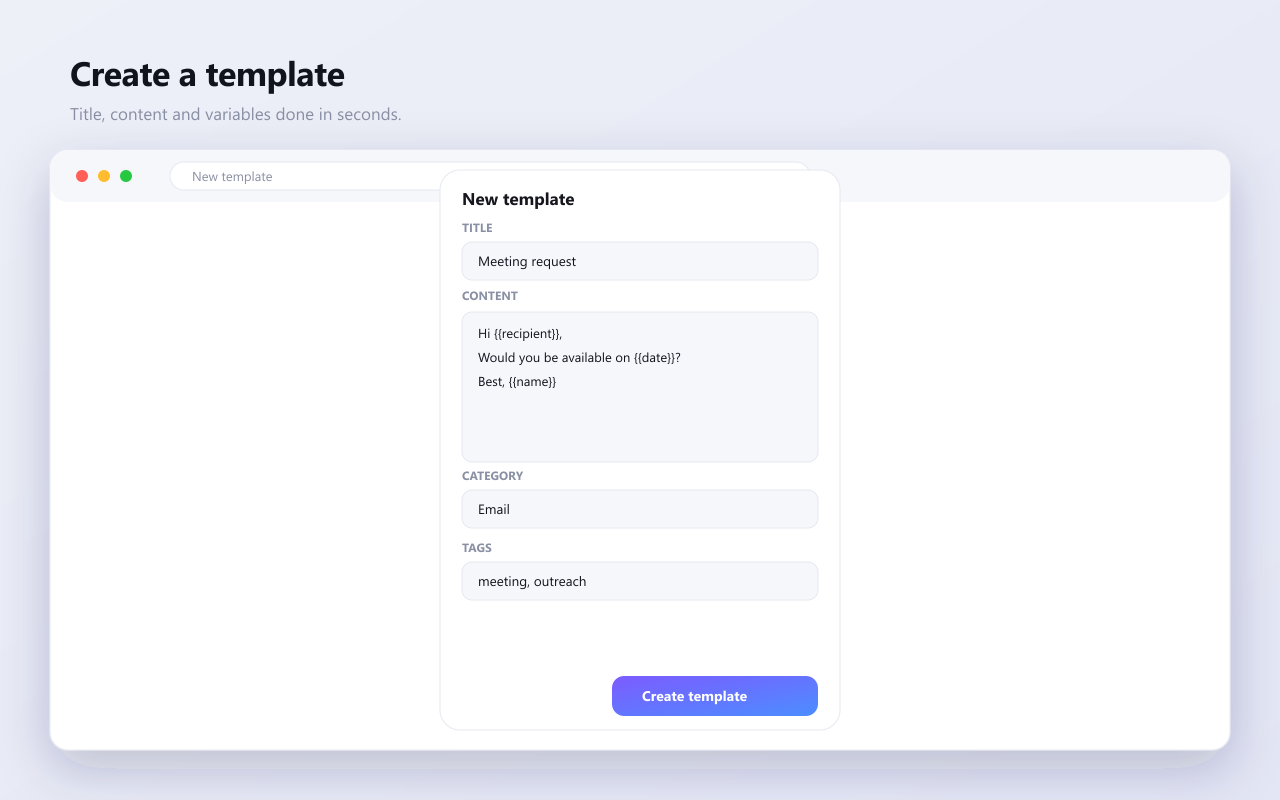
Create your first template
Open the popup and hit New template. Add a title and your content, then sprinkle in variables to personalize automatically.
- Plain text, rich text, Markdown, HTML or code
- Use {{name}}, {{date}} or {{topic?Ask me}}
- Organize with folders, tags and colors
3
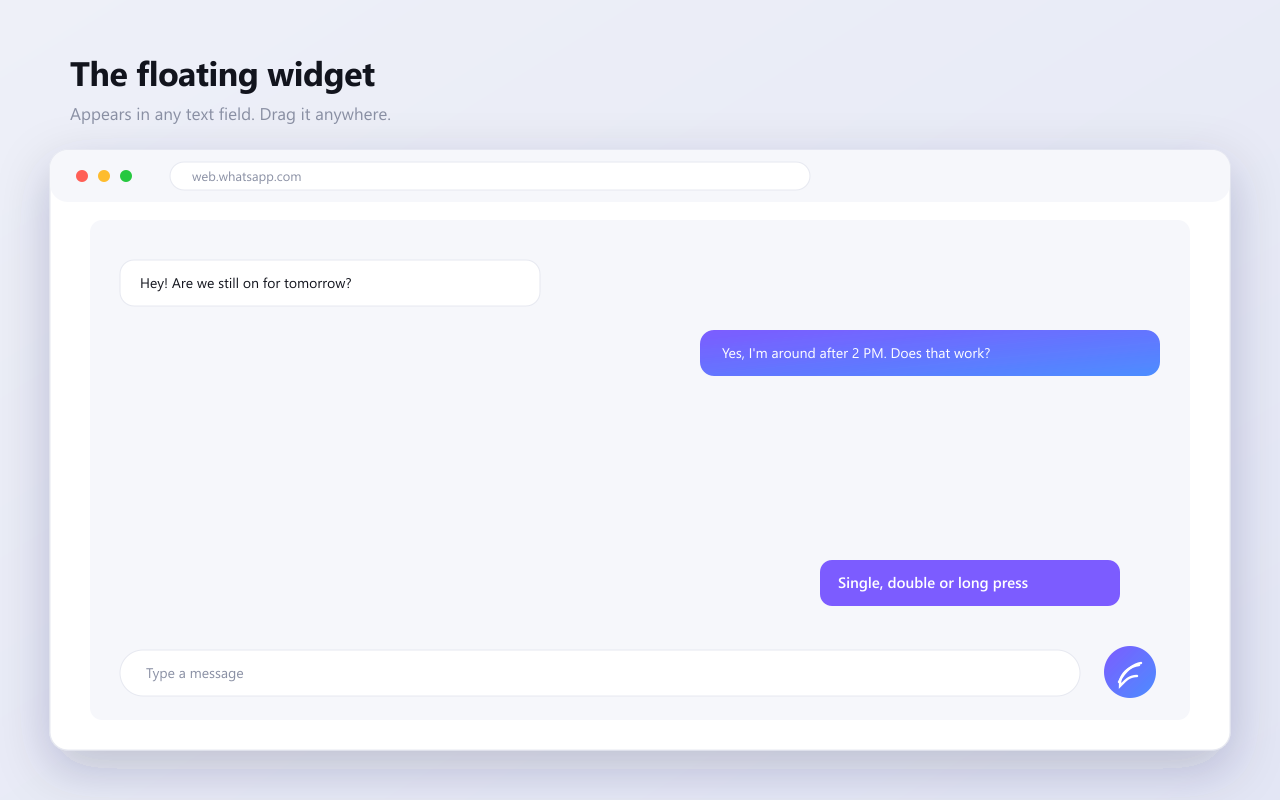
Insert with the floating widget
Focus any text field and the floating button appears. Single click for favorites, double click for everything, long press for settings.
- Drag it anywhere, it remembers per site
- Resize, recolor, lock or hide it
- It never blocks your typing
4
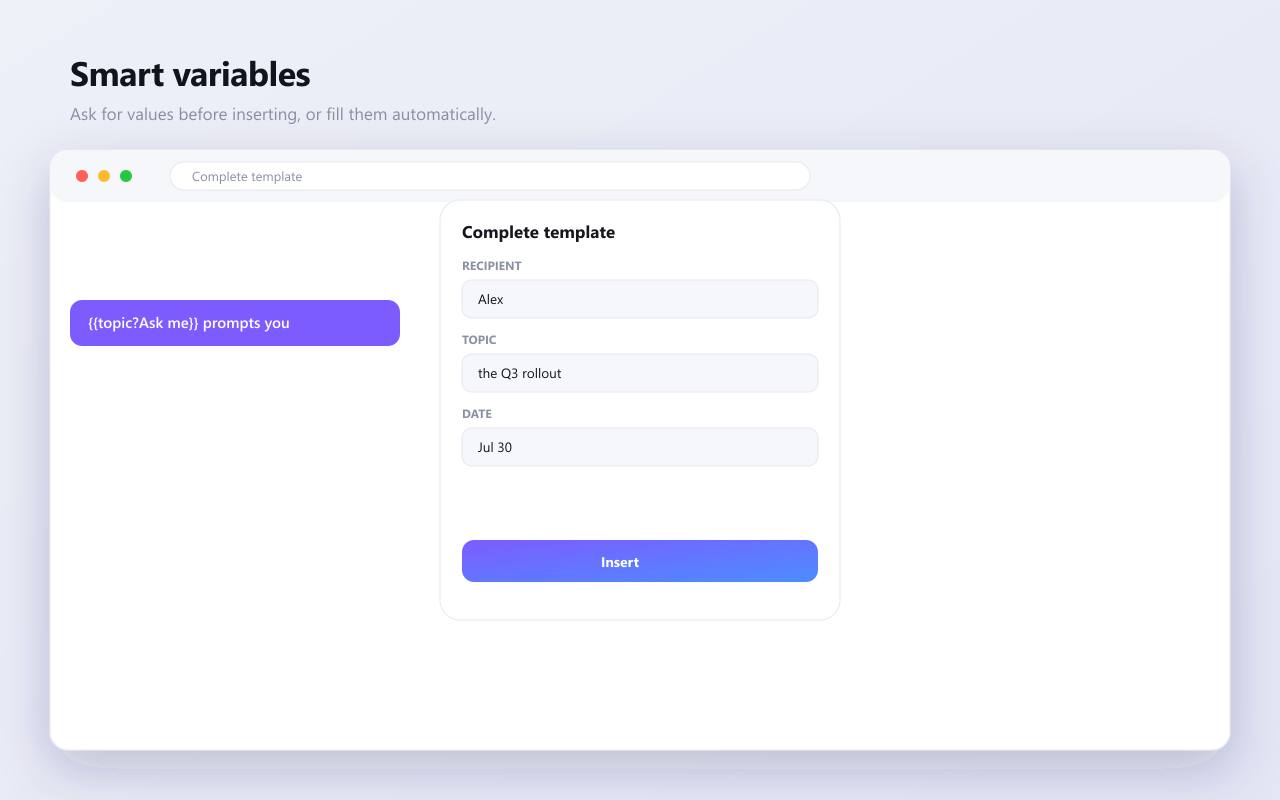
Personalize with variables
Templates with variables ask you for the details right before inserting, or fill them from your saved profile.
- Ask before insert with a friendly prompt
- Custom variables like {{role}} fill automatically
- Place your cursor exactly with {{cursor}}
5
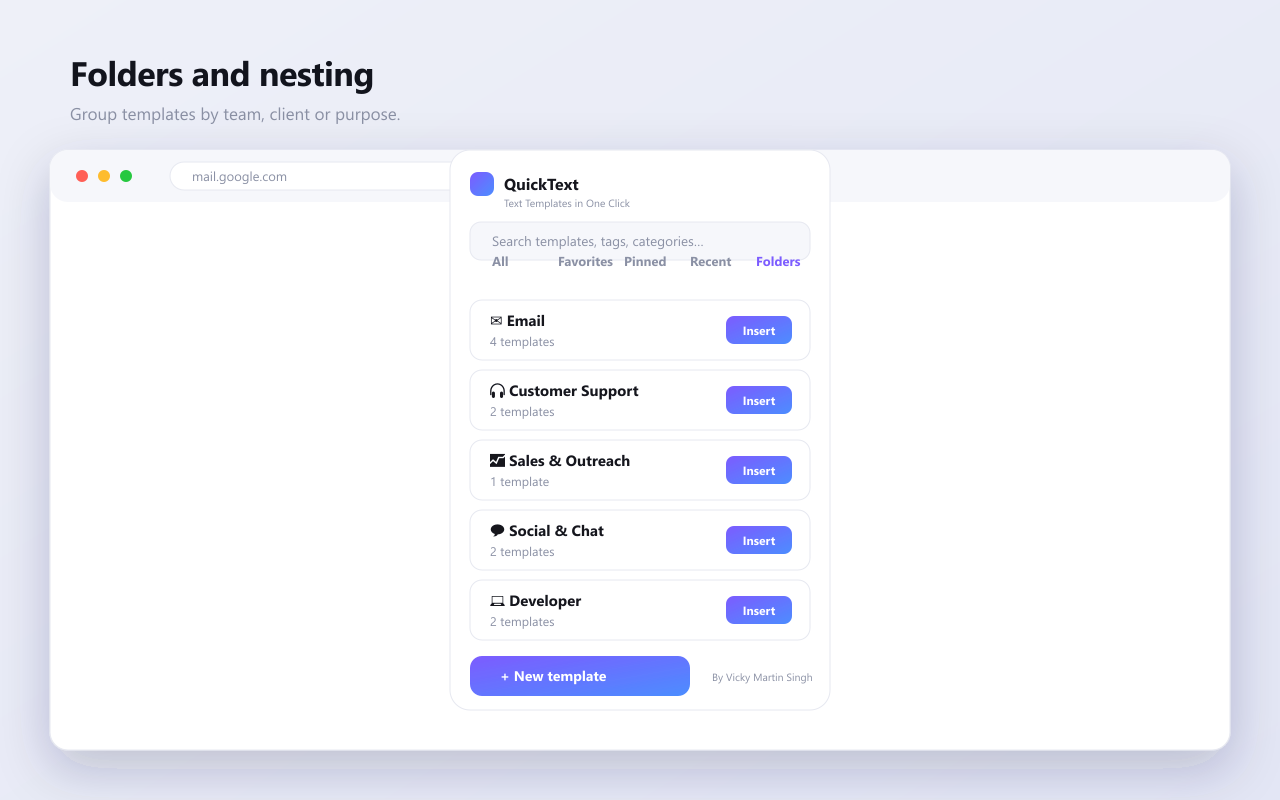
Organize as you grow
Keep hundreds of templates tidy with folders, favorites, search and bulk actions.
- Nested folders and categories
- Favorites and pinned for quick access
- Fuzzy search finds anything instantly
Gallery
Every screen, polished
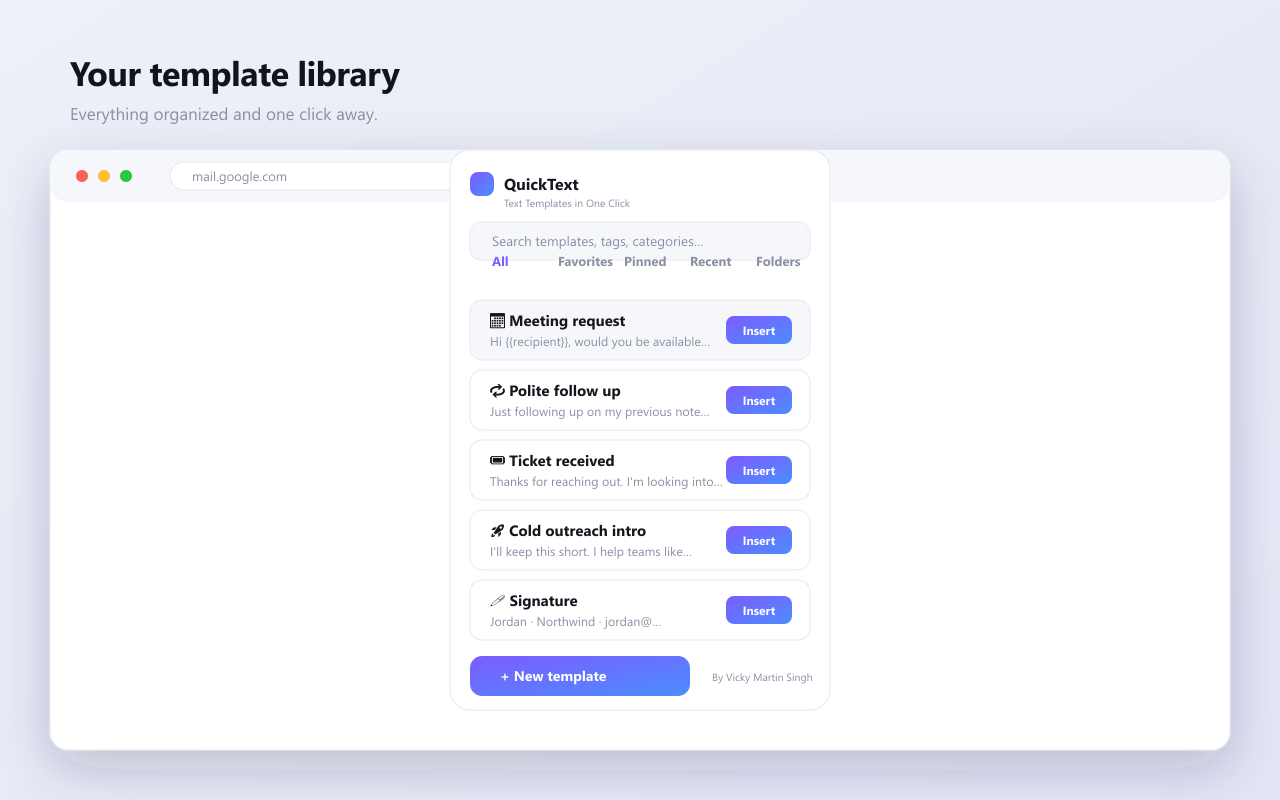
Template libraryEverything one click away
Floating widgetWorks in any text field
Smart variablesPersonalize on the fly
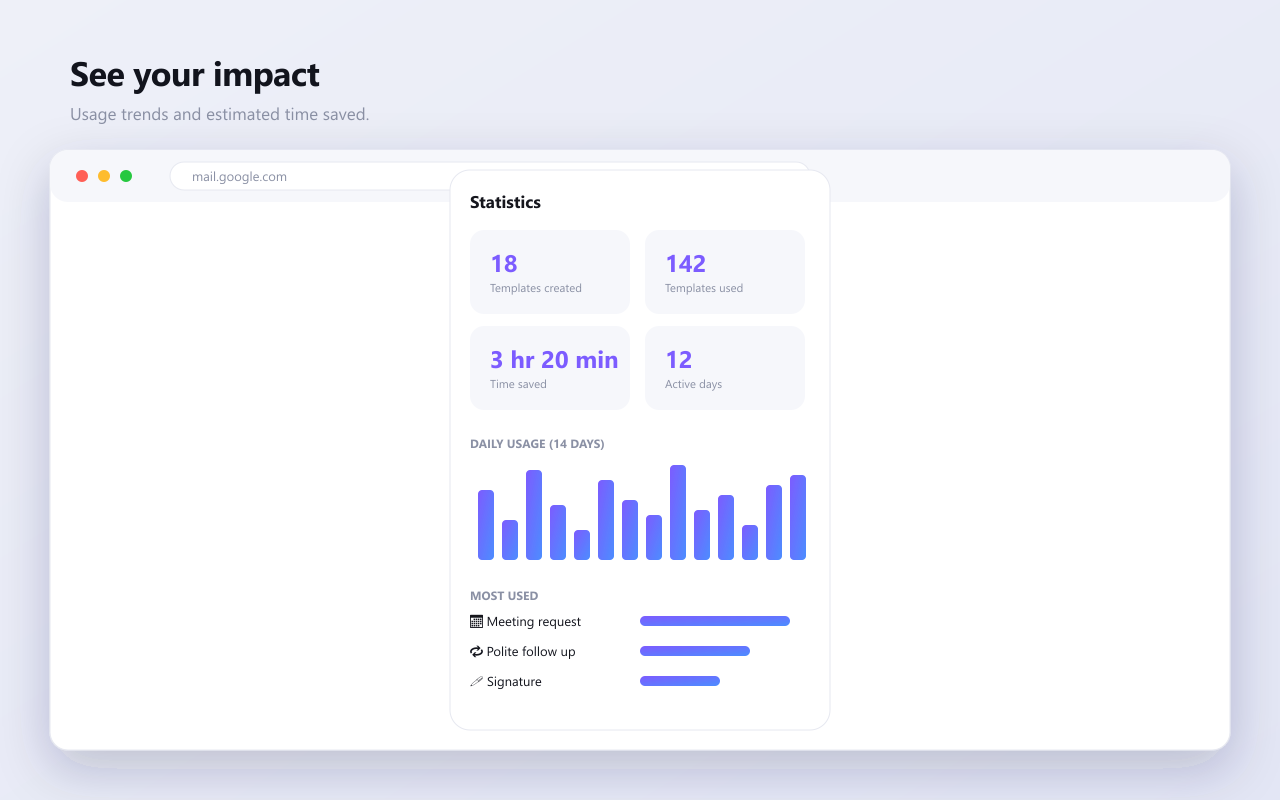
StatisticsSee time saved
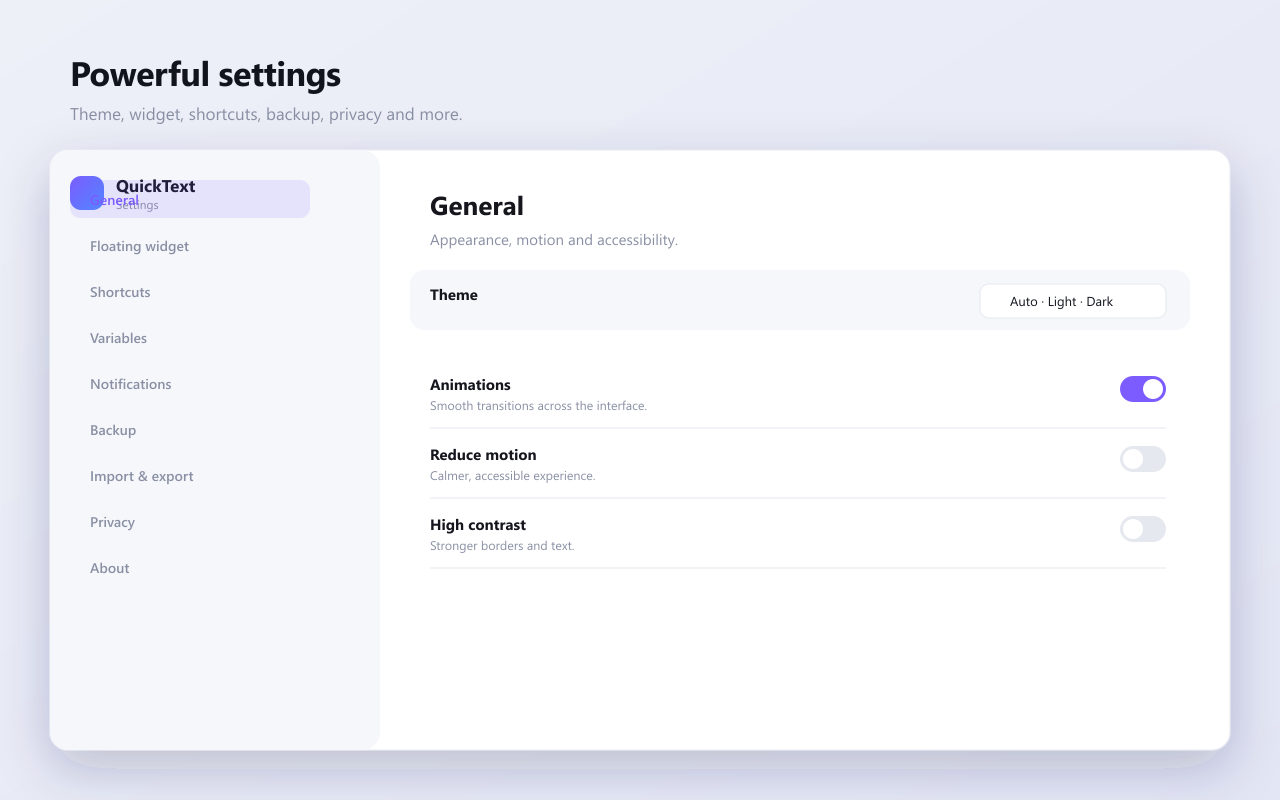
Deep settingsTune every detail
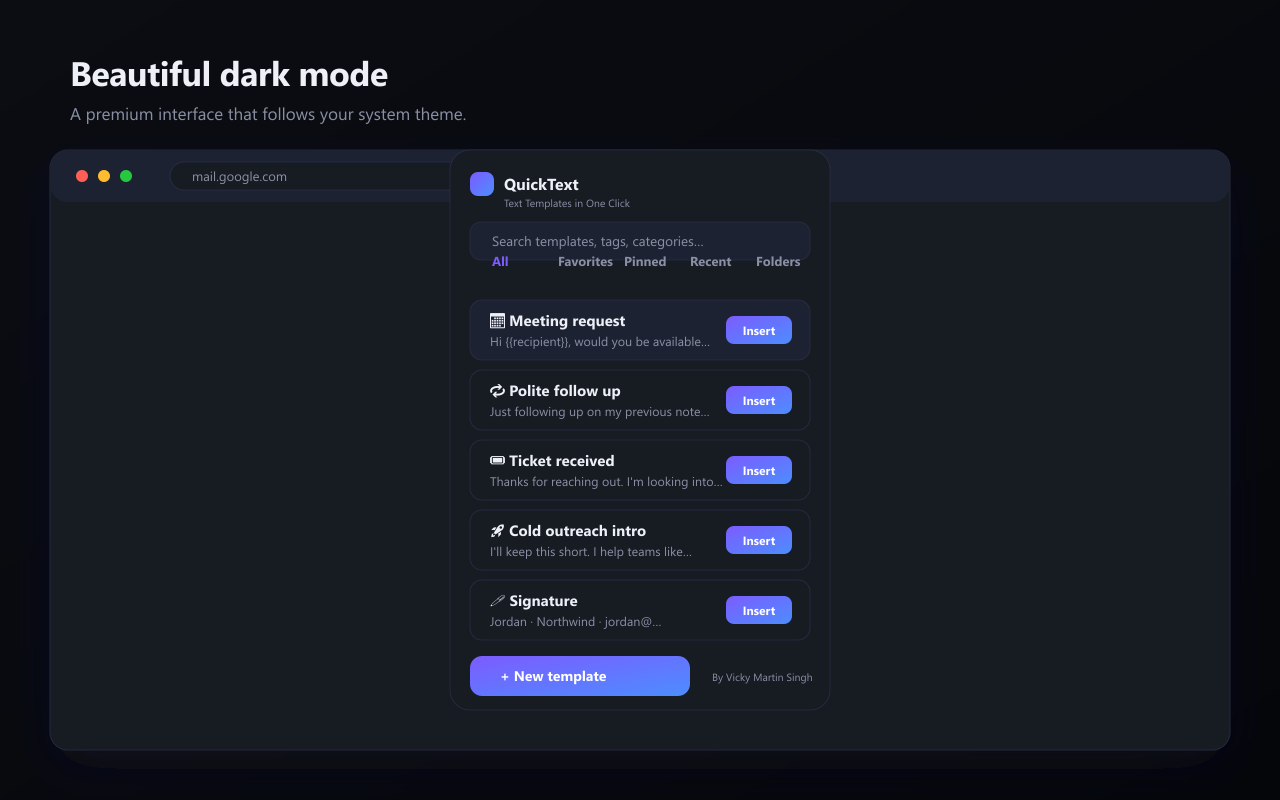
Dark modeFollows your system